Installation
There are a few ways to work with the project:
Run it in an Online session on RenkuLab (easiest setup, but limited computing power and non-permanent storage!)
Run it on your local machine using a Docker container (recommended for novice users)
Install libraries locally directly on your computer (advanced users, troubleshooting potentially needed)
Online session on RenkuLab
To try out mzbsuite, the quickest way to is to spin a virtual session on Renkulab:
Go to https://renkulab.io/ and create an account (or log in if you already have one).
Once you’re logged in, go to https://renkulab.io/projects/biodetect/mzb-workflow
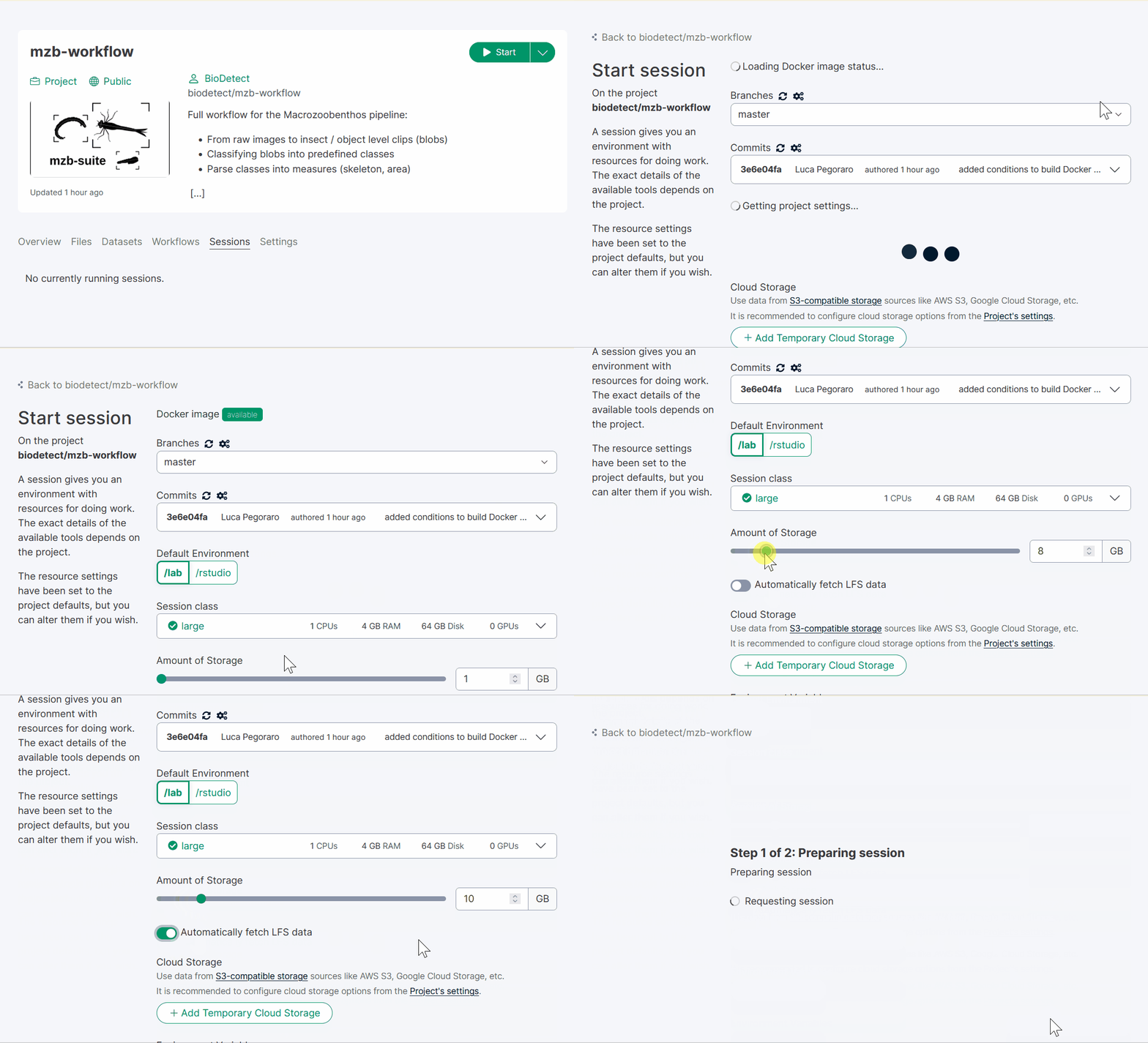
Start the virtual session:
in the project overview you should see a green play button
click the dorp-down menu arrow on its right and select “Start with options”;
Under “Session class” select Large (1 CPU, 4 GB RAM, 64 GB disk)
Drag the bar for “Amount of storage” to 10 GB.
Toggle the switch “Automatically fetch LFS data”
At the bottom of the page click “Start session”
Be patient! It can take several minutes for the session to start.
Once the session has started you should drop directly into the JupyterLab interface. From there you can run the example workflow by simply typing:
workflows/mzb_example_full_pipeline.sh
You can also upload your own images and test mzb-suite on them! Simply create a new folder under /data and change the input / output directories in the workflows/mzb_example_full_pipeline.sh script accordingly (see Workflow scripts for more details).
We don’t recommend Renku online sessions for long term use, because they have limited computing power and storage and can be shut down (i.e. for maintenance), therefore all data not exported will be lost!
Docker container
If you want to run the pipeline on yur own data and local computer resources but you are not too familiar with managing python environments, we recommend installing via Docker.
First, install the Docker Engine
Admin privileges may be needed to install Docker Engine. Additionally, on some systems, it might be necessary to enable virtualization in the BIOS. How to do this depends on the specifics of your system: look online for a guide specific for your computer manufacturer / model.
After the installation, launch the Docker app and wait until it’s fully started.
Open a terminal in a directory you would like to save your work in (you must have write permissions).
Download and launch the project’s Docker image by running the following lines in a terminal window:
⚠️ WARNING: this may take a while to run the first time, as it needs to download the Docker image (~5 GB)
imageName=registry.renkulab.io/biodetect/mzb-workflow:8805a38
repoName=mzb-workflow
docker run --rm -ti -v ${PWD}:/work/${repoName} --workdir /work/${repoName} -p 8888:8888 ${imageName} jupyter lab --ip=0.0.0.0
Hint
If you are on Windows, use this instead:
set imageName=registry.renkulab.io/biodetect/mzb-workflow:8805a38
set repoName=mzb-workflow
docker run --rm -ti -v %cd%:/work/%repoName% --workdir /work/%repoName% -p 8888:8888 %imageName% jupyter lab --ip=0.0.0.0
The last few lines of the output should look something like this:
To access the server, open this file in a browser:
    file:///home/jovyan/.local/share/jupyter/runtime/jpserver-14-open.html
Or copy and paste one of these URLs:
    http://a62c488a6f4c:8888/lab?token=2fb162adc7251f04e37cb8d6f1f55db2fbdbc7d2e1d9e1e8
    http://127.0.0.1:8888/lab?token=2fb162adc7251f04e37cb8d6f1f55db2fbdbc7d2e1d9e1e8
We highly recommend using an IDE like Visual Studio Code to access the Docker container.
Once you have VS Code installed (follow link above), you can install the VS Code Docker extension.
If your container is already started, you can attach VS Code to it by opening the Docker extension side panel and right-clicking the container, then select “Attach VS Code to runnning container”.
You will be dropped in the container’s terminal and will have access to the volume (i.e. the local folder on your computer with the data) mounted on it.
Alternatively, you can also directly copy-paste the URL address starting with
http://127.0.0.1into your browser (e.g. Firefox, Chrome), hit Enter, and you should drop into a JupyterLab interface.
Launching the Docker image
The procedure is the same when starting the Docker image the following times, except it will not download it again therefore should be much faster launching it. Please not that the base environment (activated by default) in the Docker container already contains all required dependencies, so you don’t need to activate it using mamba.
If you prefer to use VS Code to access your container (recommended), you can also use a simplified docker run command, but remember to attach the local path where you mzb-workflow is located; like so:
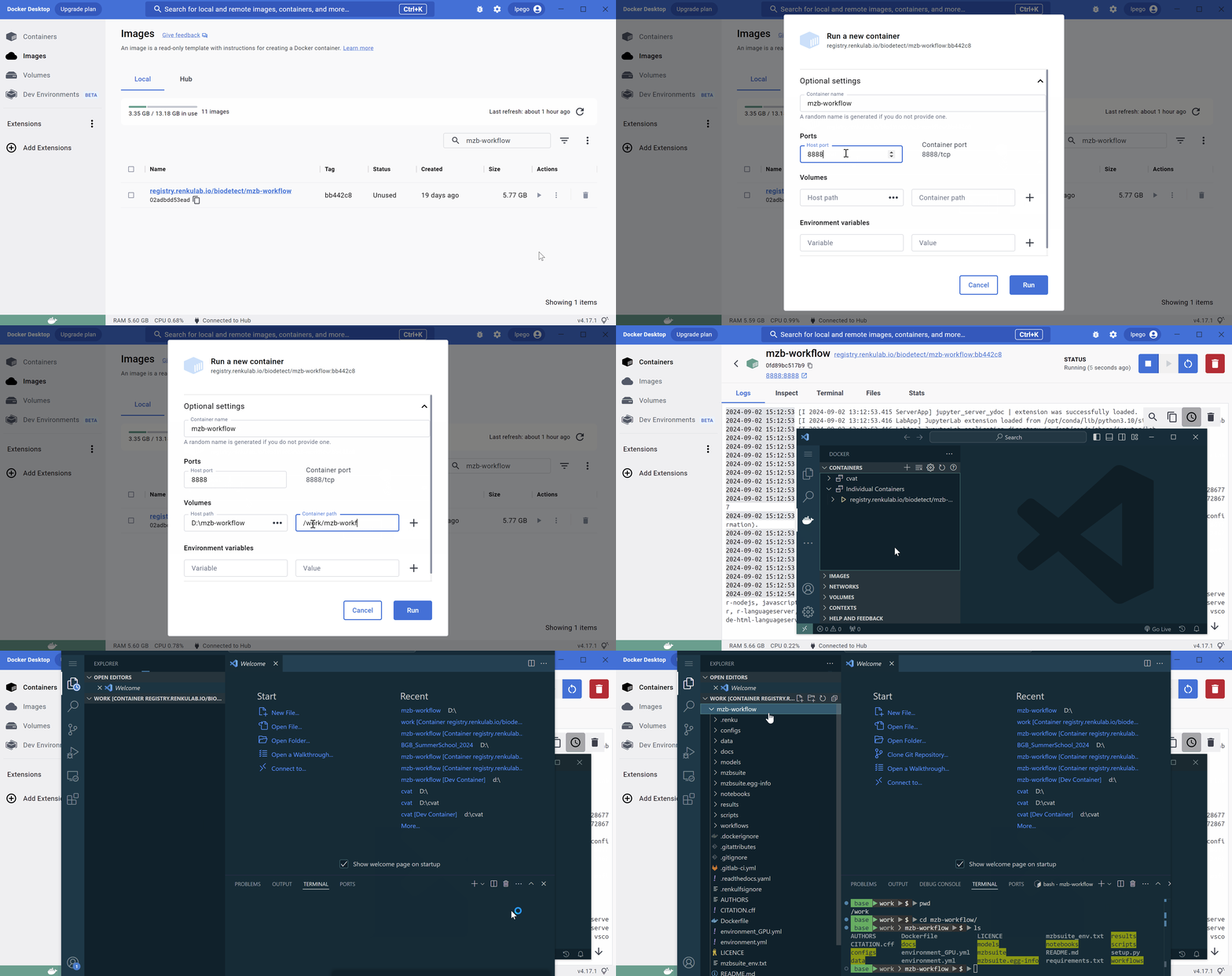
The animation below shows the procedure to launch the container from Docker Desktop, and attach VS Code to it (requires the image to already have been downloaded).
Hint
Read more about Docker containers in VS Code Docker extension and working with containers.
Hint
If you have a CUDA-capable GPU, using its resources in Docker requires additional configuration, see NVidia container toolkit.
Using the most up-to-date Docker image
The Docker image provided above saved as variable imageName is a manually pinned image that we tested and we know works. It might not contain the most most up to date versions of scripts, especially if we pushed changes to the repo recently. If you want to pull the most updated Docker image, please follow instructions here.
Make sure that the Docker image is correctly built before pulling it; you can check build status here.
Install libraries locally
If you prefer to install the project directly in your local environment or just want to use the functions in your own scripts, you can download the repo and install it as a Python package. The project is hosted on the Swiss Data Science Center GitLab server, you can find the repository here:
To download the project, you simply need to clone it into a location of your choice:
git clone https://gitlab.renkulab.io/biodetect/mzb-workflow.git
If you don’t have Git installed, you can follow instructions here. We recommend using Git because it allows you to easily update the package, and to track any changes you make to the source code.
This will create a folder called mzb-workflow in the current working directory.
Hint
If you don’t want to use Git, you can directly download an archive of the repository from GitLab and extract it manually.
You can then install the necessary packages using the a package manager like mamba or conda, using the environment.yml file:
cd mzb-workflow    # chdir mzb-workflow in Windows
mamba env create -f environment.yml    # or use conda env create -f environment.yml
Hint
We strongly recommend using Mamba, find installation instruction here. If you don’t have the mamba or conda commands available, you might need to reinstall them, making sure to check “Add to PATH” during installation so you can access the command from any terminal.
This should install the mzbsuite package as well, but if this does not work, you can simply install it via pip as:
pip install -e .
the -e flag will install the package in editable mode, so that you can make changes to the functions in mzbsuite and they will be reflected in your environment.
You can check whether mzbsuite has been installed by running:
mamba list -n mzbsuite
and check that mzbsuite appears in the list.
If there are no errors then you’re all set up and can start using the package!
Remember that you always have to activate the environment before running mzb-suite, like so:
mamba activate mzbsuite
Install GPU support
If you open environment.yml, you will see that there are a few lines commented out. By default, we install the CPU-only version of packages, but if you have a CUDA-capable GPU available, you can install the CUDA version and benefit from GPU acceleration.
You will also need to have CUDA-compatible drivers for your GPU installed, as well as CUDA toolkit installed. Check out this short guide for help.
In environment.yml, simply comment out the line - pytorch::cpuonly, and remove the comment from - pytorch-cuda=11.8; your pytorch dependencies should like so:
- pytorch::pytorch=2.0.1
- pytorch::torchvision=0.15.2
- pytorch-cuda=11.8
# - pytorch::cpuonly
- pytorch-lightning=2.0.3